Pine Phone Community Edition Runbook
Table of Contents
Had to install/re-install enough times, needed some notes
General
Boot Order
- SD Card w/ boot record
- eMMC (internal storage)
An SD Card with a boot record will be booted first. eMMC will be booted from when SD card is absent or does not contain a boot record. Holding the volume buttons while booting drops into a phosh emergency shell.
Device locations
/dev/mmcblk0*for SD/dev/mmcblk2*for eMMC
From lsblk:
NAME         MAJ:MIN RM   SIZE RO TYPE MOUNTPOINTS
mmcblk0      179:0    0  59.5G  0 disk
├─mmcblk0p1  179:1    0   243M  0 part /boot
└─mmcblk0p2  179:2    0  59.2G  0 part /
mmcblk2      179:32   0  29.1G  0 disk
├─mmcblk2p1  179:33   0 213.6M  0 part /run/media/user/BOOT_MNJRO
└─mmcblk2p2  179:34   0  28.9G  0 part /run/media/user/ROOT_MNJRO
Install on eMMC (Internal Storage) [INCOMPLETE]
To install on Embedded MultiMediaCard (eMMC, internal storage), install from the booted SD Card by getting postmarketOS from their install page. We'll be using stable v25.06 for and installing the latest phosh image with the goal being to have a very stable install on eMMC we can always fall back on.
ssh user@192.168.0.218
sudo su -

# Download image
wget https://images.postmarketos.org/bpo/v25.06/pine64-pinephone/phosh/20251219-1434/20251219-1434-postmarketOS-v25.06-phosh-25-pine64-pinephone.img.xz

# Verify Digest
sha256sum 20251219-1434-postmarketOS-v25.06-phosh-25-pine64-pinephone.img.xz
#> 0b6860ea8be70ac4cbc6661954ba8a7ba2278cf6b0eac07991242c4398f370e8  20251219-1434-postmarketOS-v25.06-phosh-25-pine64-pinephone.img.xz
#--0b6860ea8be70ac4cbc6661954ba8a7ba2278cf6b0eac07991242c4398f370e8 <-- from Phosh

xz --decompress 20251219-1434-postmarketOS-v25.06-phosh-25-pine64-pinephone.img.xz


# dd/copy to eMMC
dd if=20251219-1434-postmarketOS-v25.06-phosh-25-pine64-pinephone.img of=/dev/mmcblk2 bs=1M conv=fsyn # this version doesn't seem to have `status=progress`
Full Disk Encryption
ssh user@192.168.0.218
sudo apk add pmbootstrap

pmbootstrap init
# Choose channel `v25.06` at prompt
# Default to Vendor [qemu] (default)
# Device codename [aarch64] at prompt
# Kernel [lts] (default)
# Username [josh]
# Privoder [default] (default)
# User interface [phosh]
# Install systemd? (default)
# Change them? [n] (default)
# Extra packages [none] (default, though it would be cool to provide a list)
# Use this timezone [y] (default, it correctly guessed TZ)
# Locale [en_US] (default, correctly guessed)
# Device hostname [qemu-aarch64] (default)
# Build outdated packages? [y] (default)

pmbootstrap install --sdcard=/dev/mmcblk2 --fde
Flash/Update Modem
Using the pinephone modem sdk 0.8.0 release, under Manjaro/Plasma:
sudo su -

pacman -S android-tools

mkdir ~/Modem
cd ~/Modem

# Recommended version by author
wget https://github.com/Biktorgj/quectel_eg25_recovery/raw/EG25GGBR07A08M2G_01.003.01.003/update/NON-HLOS.ubi

# Enter fastboot mode
echo -ne "AT+QFASTBOOT\r" > /dev/ttyUSB2

# Flash Firmware
fastboot flash modem NON-HLOS.ubi
fastboot reboot
Additional info
# See modem/status of modem. Will show if in `(fastboot)`
lsusb

# Show current ADSP version (didn't work for me)
echo -ne "AT+QGMR\r" > /dev/ttyUSB2
The first time I picked a higher-versioned firmware which did not work and caused the modem
not to boot. Was able to use the recovery repo to successfully get out of it by shorting
the test pins (mentioned in link) to get to EDL mode. In hindsight it's possible that
wasn't needed; I went that route because lsusb didn't show the modem at all but it's possible
that had I waited or tried fastboot reboot again it would have been sufficient.
TODO Next Steps:
Try the newer versions, 004 etc, one at a time.
PostmarketOS/Phosh
Carrier Setup
- set T-Mobile APN to
fast.t-mobile.comUnderSettings -> Mobile Network -> (Advanced) Access Point Names -> + - Enable Mobile Data:
Settings -> Mobile Network -> Mobile Data - MMSC: Chatty has the correct value (
http://mms.msg.eng.t-mobile.com/mms/wapenc) by default
This will also fix the time zone
General TODO
- Mobile Settings…
- Top Bar…
- Scaling Quick Setting
- Location Quick Setting
- Caffeine Quick Setting
- On Screen Keyboard
- Layouts -> Add Layout ->
English (Dvokrak)(make 2nd in list)
- Layouts -> Add Layout ->
- Top Bar…
- Setup Wifi
- Setup Syncthing
- Setup KeepassXC
- Mobile Settings -> Compositor -> Enable for KeePassXC (KeepassXC is usually jacked and doesn't fit the screen)
- View -> Disable "Show Preview"
- View -> Enable "Compact Mode"
- Restart
- Open Database
- Mobile Settings -> Compositor -> Enable for "keepassxc" dialog (Open Dialog is probably cut off)
- Settings…
- Security…
- Set Clear Clipboard to 120 seconds
- Uncheck Lock databases
- Uncheck Lock databases when session is locked…
- Browser Integration..
- Enable
- Enable for Firefox
- Advanced…
- Enable Never ask for accessing credentials
- Security…
- Settings -> Online Accounts -> WebDAV…
- Setup CalDAV login
- Address Book -> Select "Main Address Book" from CalDAV server
- Firefox Setup:
- Install KeepassXC Firefox Connection
- Click plugin, click "Connect"
- Add name when prompted
- Settings…
- General…
- Enable
Open previous windows and tabs - Disable
Show an image preview...tab...(gets in the way sometimes)
- Enable
- Search…
- Set Defalult Search Engine -> DuckDuckGo
- Disable
Show search terms... - Disable
Suggestions from Firefox - Disable
Suggestions from sponsors
- Browser Privacy…
- Strict
- Disable
Ask to save passwords(so KeepassXC can handle it) - Disable
Save and fill addresses - Disable
Save and fill payment methods
- General…
- Install KeepassXC Firefox Connection
- Install
fractal, verify - Install
flare, verify - Install
read-it-later(Easiest to log into instance to copy key/secret)
Disable Aggressive Suspend
If the modem is getting suspended too aggressively, having issues
when coming out of sleep, you can tell it to chill
a bit by editing /usr/lib/udev/rules.d/80-modem-eg25.rules
and changing the line:
ATTRS{idVendor}=="2c7c", ATTRS{idProduct}=="0125", ATTR{power/control}="auto"
# ---- to -----
ATTRS{idVendor}=="2c7c", ATTRS{idProduct}=="0125", ATTR{power/control}="on"
# ----------------------------------------------------------------------^^
No ring tone when calling
echo -ne "AT+EN_CAT\r" > /dev/ttyUSB2
Note: hasn't been an issue on edge (Dec 2025)
Persist Scaling
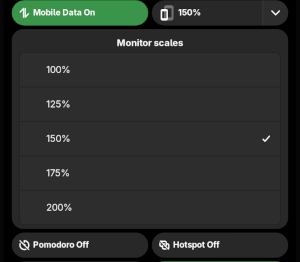 Although the UI provides the ability to change scaling on-the-fly
the selection does not persist through reboots and will
always return to 200%.
Although the UI provides the ability to change scaling on-the-fly
the selection does not persist through reboots and will
always return to 200%.
Find screen
pine64-pinephone:~$ ls /sys/class/drm/
card0           card1           card1-DSI-1     card1-HDMI-A-1  renderD128      version
#-------------------------------------^^^^^
Edit /usr/share/phosh/phoc.ini (could be /etc/phosh/phoc.ini)
and uncomment/modify the following:
[output:DSI-1]
scale = 1.5 # 150%
Update GTK for Megapixels [INCOMPLETE]
Required packages:
sudo apk add meson git flex bison g++ libxrandr-dev libxcursor-dev libxkbcommon-dev gstreamer-dev gst-plugins-base-dev libxi-dev libxinerama-dev vulkan-headers vulkan-tools vulkan-loader-dev pango-dev librsvg-dev
wget https://download.gnome.org/sources/gtk/4.21/gtk-4.21.3.tar.xz
tar -xvf gtk-4.21.3.tar.xz
cd gtk-4.21.3/
Testing for compatible sources [6/6]
Tried just building
from their source but
had some issues with it requiring wayland-client-1.24
which is part of edge, stable only goes up to
1.23.x. I see from a search that 1.24 was released just
Back in July so I'm going to try
downloading the sources
and work my way back until one works.
[X]4.21.3 - NO[X]4.21.2 - NO[X]4.21.1 - NO[X]4.21.0 - NO[X]4.20.3 - NO[X]4.20.0 - NO
Struck out on all of these. Cutting to the release date and trying
4.19.3 which was released Aug 03, just after the wayland update.
This one worked so I'll run with it for now.
Attempt w/ kkofler/gtk sources
cd ~/src
git clone https://github.com/kkofler/gtk.git kkofler-gtk
cd kkofler-gtk
Run
meson setup _build # ~15 min -- ~2 mi
meson compile -C_build # ~5 hours --

# vvv Haven't gotten this far yet vvv
meson test -C_build
sudo meson install -C_build # ~2 min
Failed here with the error fatal error: execinfo.h: No such file or directory.
According to
this discussion it looks like execinfo.h is provided by glibc
but Alpine/PostmarketOS are using musl instead. After a bit of
fussing around I'm abandoning this here. I'm going to try edge
and hope that it's either working or that this fix will work here.
Megepixels2 [DIDN'T WORK]
- https://github.com/dreemurrs-embedded/Pine64-Arch/issues/699
- https://blog.brixit.nl/megapixels-2-0-progress/
- https://docs.flatpak.org/en/latest/using-flatpak.html#add-a-remote
- flatpak remote-add –if-not-exists flathub https://flatpak.brixit.nl/megapixels2.flatpakref
- Note: could add via command line
- wget https://flatpak.brixit.nl/megapixels2.flatpakref
- Open in file manager
- Long-press -> open with Software Install
- Install from Local (didn't work :( )
Tips, Tricks, Reminders
Force Show/Hide Keyboard
Some applications do not do a good job of showing the keyboard when a field has focus, and in other situations it will show the keyboard when there are no fields on the screen. The keyboard can be forced open/closed by long-pressing the bar at the bottom of the screen:
Paste menu
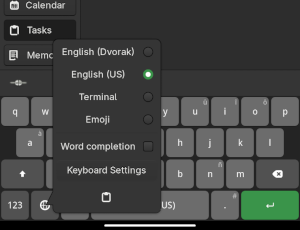 Sometimes it can be tricky to get the paste menu to come up
via long press. It can also be accessed via the Keyboard
Select menu
Sometimes it can be tricky to get the paste menu to come up
via long press. It can also be accessed via the Keyboard
Select menu
Fine Movement
Long-press the spacebar to move the cursor more finely:
Record Screen
sudo apk add wf-recorder
XDG_RUNTIME_DIR=/run/user/10000 wf-recorder
Ctrl+c when done, video will be recording.mkv in the current
directory.